
Sometimes PrintVisor may not display the correct information about your printer, or in rare cases, it may not show any data at all. If this happens, don’t worry — you can quickly report the problem so our team can investigate and fix it. This guide walks you through the steps.
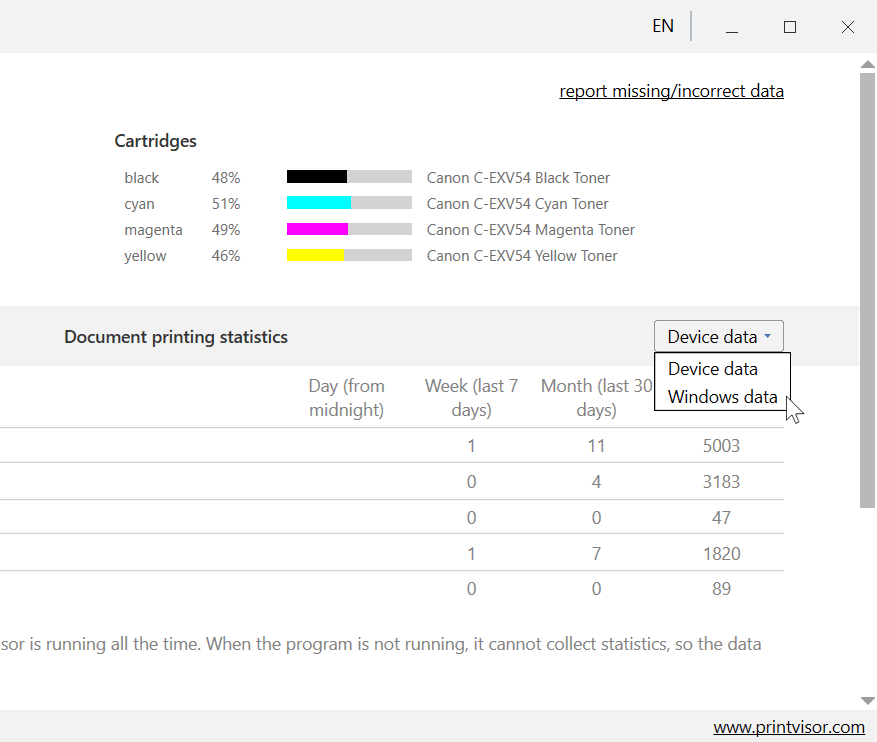
First, if you’re having trouble with Document printing statistics (Pages total, B/W pages, B/W pages copied, Color pages, Color pages copied), try switching between Windows data and Device data. Please compare both options and let us know if these values are different.
If this switching doesn’t help, please follow the instructions below.
How to report missing or incorrect data — step by step instructions
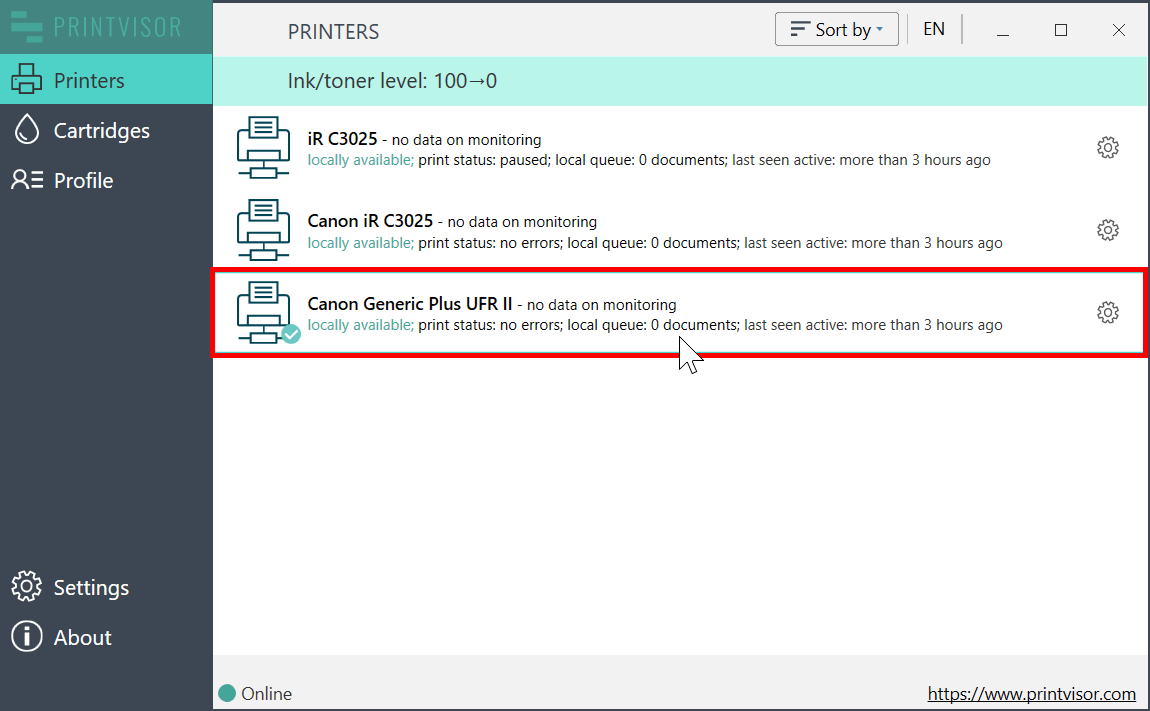
Step #1 — Open the Printer Profile
Launch the PrintVisor app and double-click the printer that is showing incorrect or missing data.
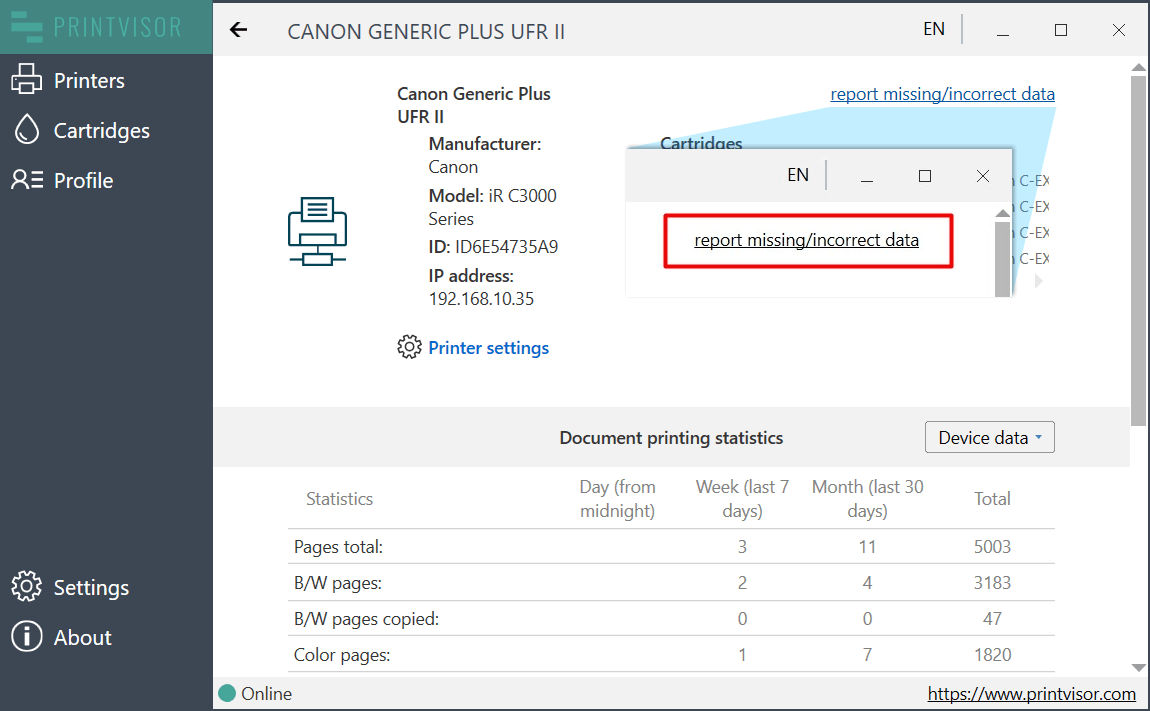
Step #2 — Locate the “Report missing/incorrect data” button
In the top-right corner of the printer details window, click the Report missing/incorrect data button.
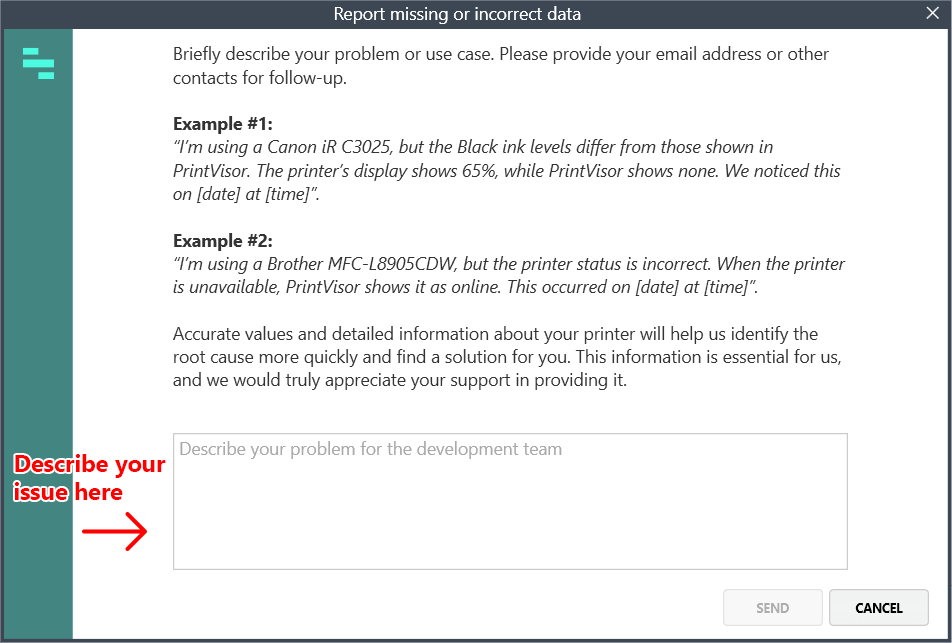
Step #3 — Provide Details
Choose one or more issue types from the list, and then describe the problem in the text field. Please give us as many details as possible, such as:
- Correct ink or toner levels (if available)
- Correct page count (if different from what PrintVisor shows)
- The date and time of prints that PrintVisor didn’t detect
- Your email address or other contacts for follow-up
Please specify as much information as possible on what’s happening with your printer so we could suggest the best solution.
Why details matter
Even printers of the same model may behave differently depending on the year of release or manufacturing variations (such as different internal microchips). By providing the exact values and details from your printer, you help us identify the root cause faster.
The more information you share, the quicker we can issue a fix.
Step #4 — Submit Your Report
Click Send to deliver your message to our development team.
What happens next?
Our developers review your report and prioritize the fix depending on the severity of the problem.
- Simple cases may be resolved within 1–3 business days.
- More complex cases may take longer.
If your issue isn’t resolved within 3 business days, please reach out again — either by submitting a support ticket or by contacting us via email or Telegram messenger.
If emails don’t get through (sometimes spam filters block messages), we may send you a notification asking you to contact our Product Team Lead directly. You will see the notification inside the PrintVisor app.