
In some situations, you may need to reset or update your PrintVisor account password — whether you’ve forgotten it during login or want to enhance security while accessing your Company Profile. PrintVisor simplifies this with options available directly on the login page and inside the Admin Panel.
Quick steps to manage your Admin Panel password
- For recovery: Visit the PrintVisor Admin Panel login at https://printvisorcp.com, click Recover password, enter your email, and follow the emailed link.
- For change: Log in to https://printvisorcp.com, navigate to Settings, and click “Change password” to update.
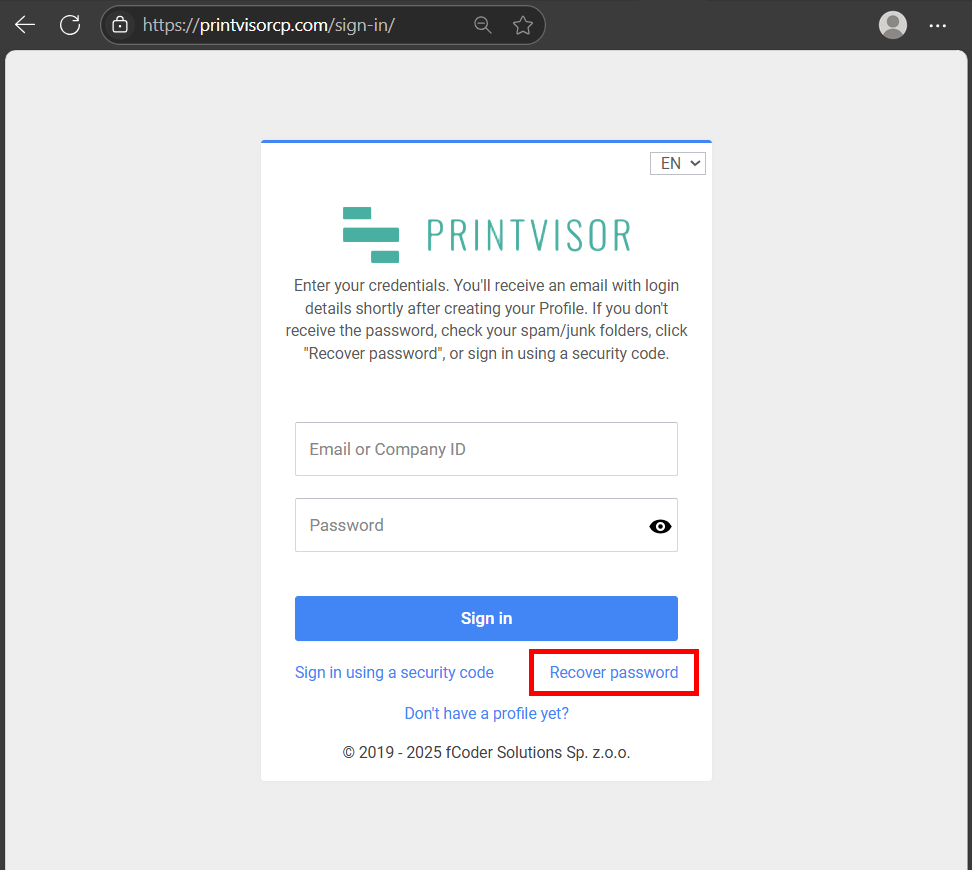
Recovering a forgotten or lost password
To recover a lost or forgotten password:
- Go to the PrintVisor Admin Panel login page at https://printvisorcp.com.
- Below the Sign in button, click Recover password.
- Enter your registered email address or Company ID (a 16-digit ID number starting with letter “C”).
- Submit the form — you’ll receive an email with a link to create a new password.
- Click the link in the email and set a new, strong password.
Note: Check your spam or junk folders if the email doesn’t arrive promptly. If you don’t remember your email or Company ID, contact PrintVisor support for assistance.
Once reset, you can log in normally and resume monitoring your printers.
Did you know? You can sign in using a security code
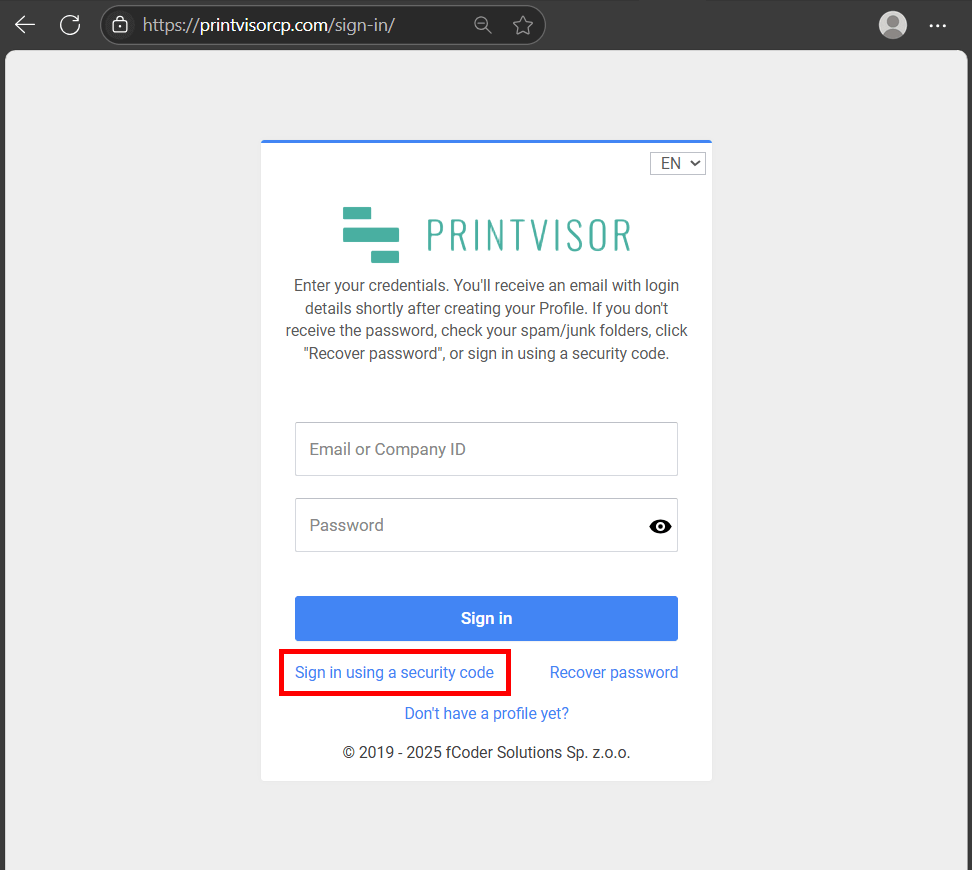
Alternatively, PrintVisor offers login via a one-time security code. In some situations, it can be more convenient to simply enter the security code rather than a password.
To sign in using a security code:
- On the login page at https://printvisorcp.com, click Sign in using a security code.
- Enter your email address associated with the profile.
- Submit and check your inbox — you’ll receive an email with a security code.
- Enter the code on the subsequent page to access your Admin Panel.
Note: The code is time-sensitive and single-use. If no email arrives, check spam or use the password login as a fallback. This feature eliminates the need for passwords and can be useful in some cases.
Changing your password in the Admin Panel
If you’re already logged in and wish to update your password — for example, to comply with security best practices or after a potential compromise — use the settings in the Admin Panel. This proactive step helps safeguard your account.
To set a new password:
- Sign in to your PrintVisor Admin Panel at https://printvisorcp.com.
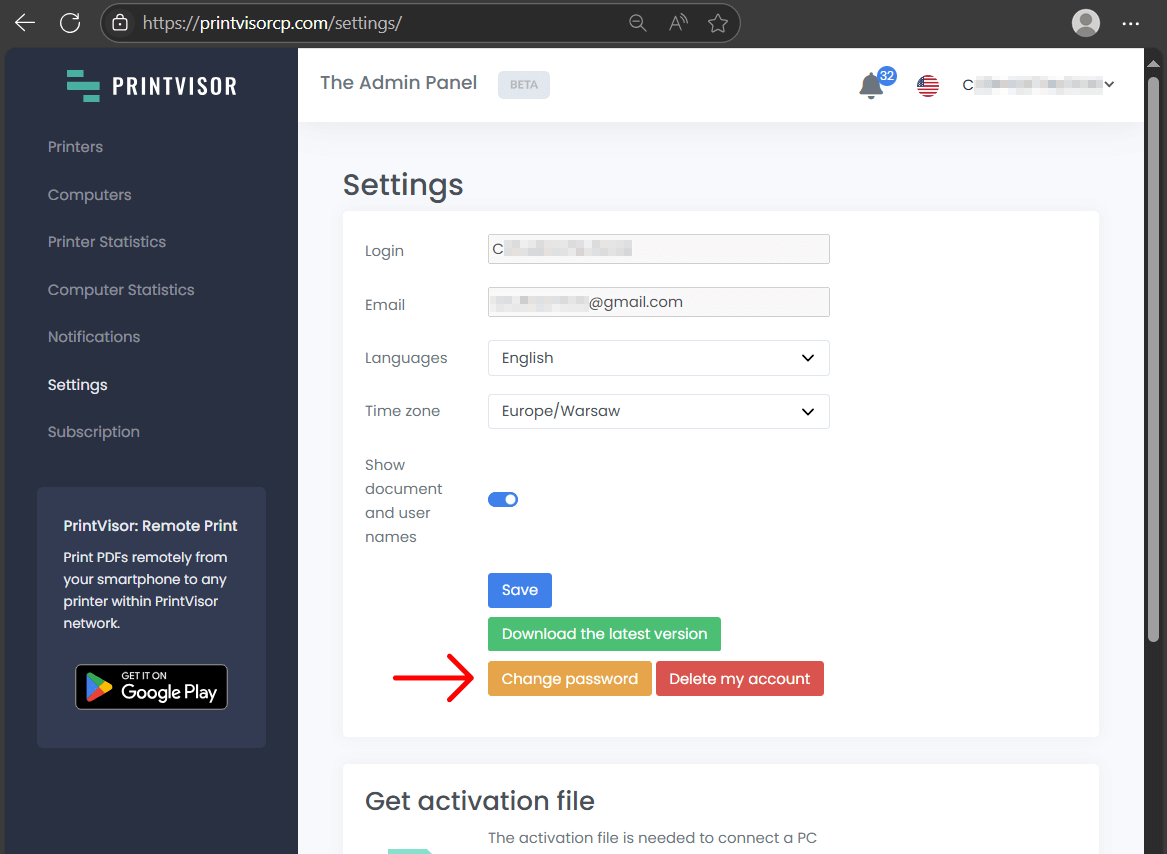
- Navigate to the Settings tab on the left sidebar.
- Click the orange button Change password.
- Enter your current password, then your new password twice for confirmation, and save.
We recommend choosing a strong password combining letters, numbers, and symbols to enhance security. This action logs you out of other sessions, requiring re-login. Unlike recovery, this doesn’t involve email since it’s an internal update.
Additional tips
Best practices to secure your account
- Regularly update your password every few months to align with security standards, especially in shared office environments where PrintVisor tracks multiple printers.
- For broader account issues, like forgotten email, reach out to support as noted on the recovery page.
Troubleshooting common issues
- No recovery email received? Verify your email address, check spam/junk folder, and retry. If persistent, contact our support service.
- Security code is invalid: Codes expire quickly — request a new one if needed.
- General login problems: Confirm internet connection and try incognito mode.