
In some cases, you may not want PrintVisor to monitor certain printers. These printers can be excluded from monitoring (blocked or hidden) if needed. Keep reading this article to learn about managing printers in your PrintVisor Company Profile.
 No worries! Hiding or removing a printer in your Company Profile affects only how it appears in PrintVisor — the printer continues to operate normally. It will not turn off the printer itself or change its physical connection.
Quick steps to remove or hide a printer
- Sign in to your PrintVisor Admin Panel (https://printvisorcp.com).
- Locate the printer you wish to manage and open its profile (click on its name).
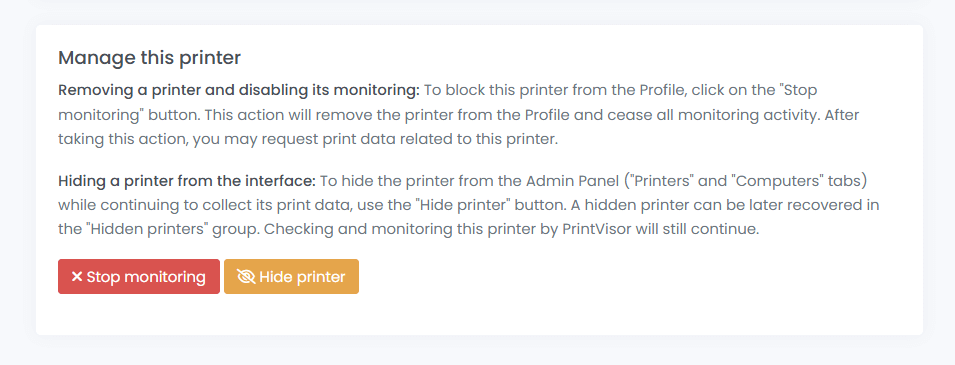
- Scroll down to the bottom of the profile page to Manage this printer section.
- Select either Remove printer and stop monitoring to remove it (and block its monitoring) or Hide printer to conceal it, then follow the on-screen instructions to confirm.
Which option to choose?
If you no longer need to track a printer — perhaps it’s been retired or reassigned — use the Remove printer and stop monitoring option. This permanently removes the printer from your Company Profile, ceases all data collection, and prevents it from being automatically re-added.
Hiding is ideal when you want to keep collecting data (e.g., for compliance or long-term analysis) but remove the printer from your daily view. This moves it to a dedicated Hidden printers section, decluttering the main lists without stopping background tracking. The hidden printer continues to log print jobs, status changes, and usage metrics, which can be accessed later if needed.
| Aspect | Hide printer | Remove printer and stop monitoring |
|---|---|---|
| Monitoring status | Continues in the background | Stops completely |
| Visibility | Removed from main lists; accessible in “Hidden printers” section | Permanently removed from all lists |
| Reversibility | Reversible via “Show printer” option in the printer’s profile | Reversible on the Settings tab (printvisorcp.com/settings) |
| Subscription impact | No change; slot remains occupied | Frees up one monitoring slot |
| Data collection | Ongoing | Ceased |
| Use case | Temporary declutter or focus on active printers | Permanent exclusion or slot reallocation |
Removing a printer and disabling its monitoring
To exclude a printer from the Company Profile, use the Remove printer and stop monitoring option.
This action unlinks the printer from your Profile, blocks it from being re-added automatically, and ceases data collection. Once completed, the printer will no longer appear in the Printers or Computers tabs on the Admin Panel.
From time to time (during startup and later), PrintVisor scans the Windows system for newly connected printers on the computer where it is installed. By using this option, you exclude the selected printer, and it will not be added again during the next scan at startup.
Removing one printer frees up one monitoring slot in your subscription. PrintVisor allows up to three printers to be monitored for free (additional printers require a paid license). Removing via the Remove printer and stop monitoring button a printer thus allows you to add another without increasing your subscription size.
Step-by-step instructions to remove a printer:
- Open the Printers tab in the PrintVisor Admin Panel, locate the target printer, and click on the printer’s name to open its profile.
- On the bottom of the page, select Remove printer and stop monitoring and confirm the action when prompted. This will unlink the device from the Profile and disable monitoring for that device.
Recovering a removed printer
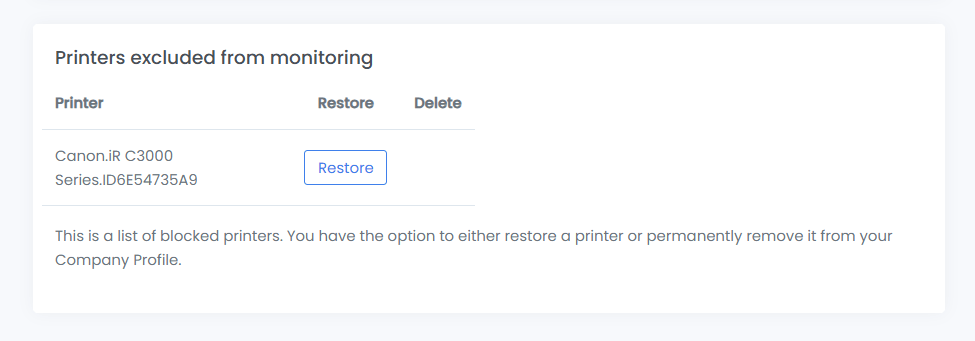
If you removed a printer from the Profile and want to recover it, follow these steps:
- Go to the Settings tab on the PrintVisor Admin Panel (printvisorcp.com/settings).
- Find the printer that has been removed and choose Restore.
After clicking Restore, this printer will again take up a slot in your subscription plan.
Important: If you choose the Delete option, the printer will be removed permanently, with no option to recover it. The Delete option is only available if this printer is not linked to any computer within the Company Profile.
Hiding a printer from the interface
Hidden printers are not lost; they are stored in the “Hidden printers” group at the bottom of the “Printers” tab.
If you want to keep a printer monitored but out of view, use the Hide printer option instead of deleting it. In the Printers tab, click the gear icon next to the printer and select Hide printer. The printer will be moved to a Hidden printers section and will no longer appear in the main list, but PrintVisor will continue to collect data from it in the background. Once hidden, the printer disappears from the main Printers list. You won’t see it while browsing active printers.
This action hides the printer from the Admin Panel (Printers and Computers tabs) while continuing to collect its print data. A hidden printer can be later recovered in the Hidden printers group.
Recovering a hidden printer
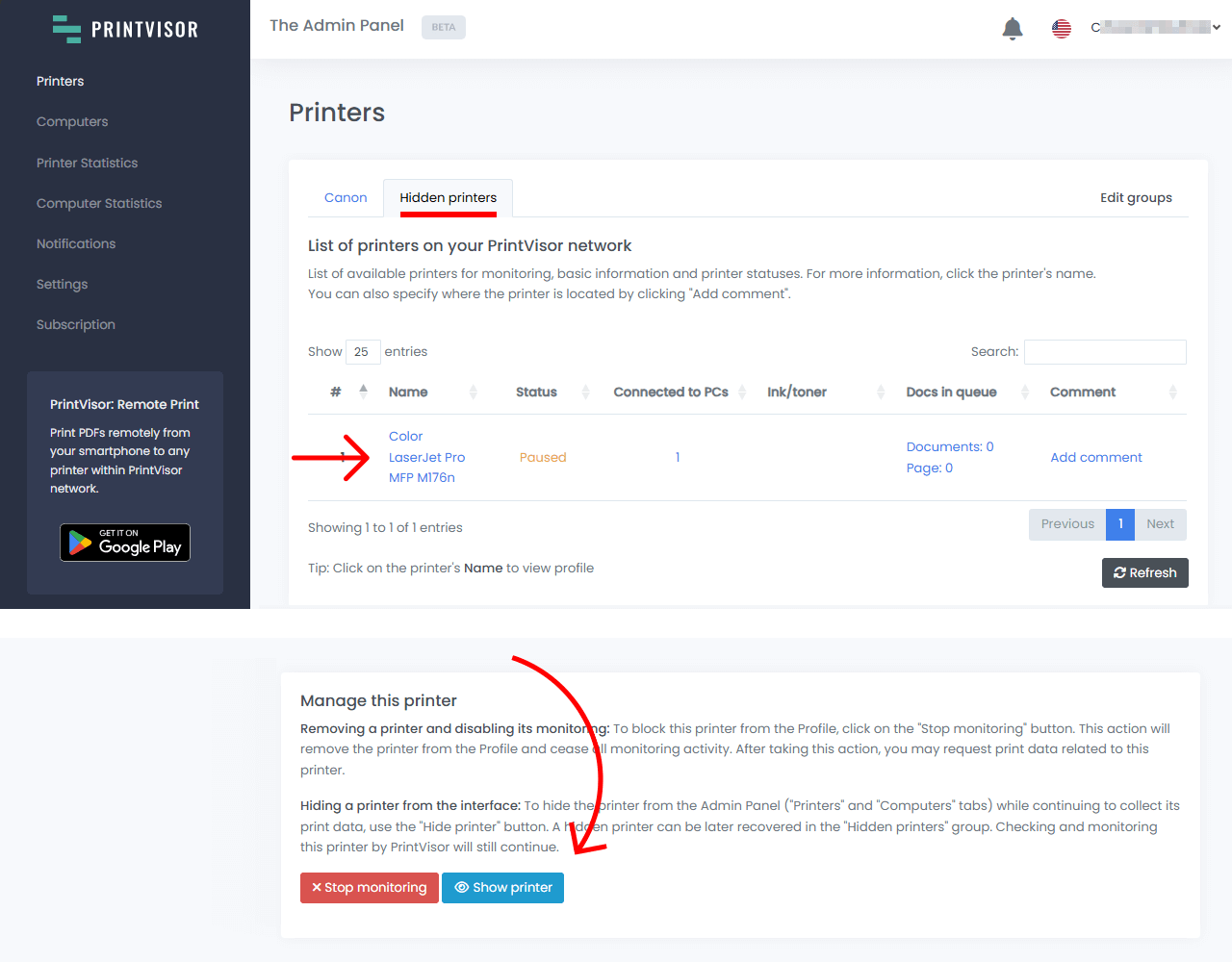
Hidden printers are listed on the Printers tab under a Hidden printers group. To restore a hidden printer, navigate to the Hidden printers group, open its profile (by clicking its name) and choose Show printer. The printer will move back into the main Printers list and resume being visible.
Note: Hiding a printer does not affect your subscription plan.
Step-by-step instructions to recover a hidden printer:
- Navigate to the Hidden printers group in the “Printers” tab.
- Click the printer’s name to open its profile.
- Click Show printer to restore it to the main Printers list, making it visible again and resuming normal display.